FormWren
Pre-release docs

What you can build

Build Resizable UI Surfaces And 3D Panels

Create panels, buttons, badges, frames, and world-space surfaces without baking a new texture for every size. Size, radius, individual corners, border, fill, gradients, textures, and supported effects remain editable in Unity.

Start with one generated shape, keep it in 3D, or move it to Canvas Mesh UI or Canvas SDF.

First safe action

Create One Visible Shape

  1. Choose Tools > Rounded Rectangle > Create > Rounded Rectangle.
  2. Select the new object and make one visible Scene-handle or Inspector edit.
  3. Confirm that the rounded mesh updates before choosing another rendering path.
Expected result: one visible rounded mesh in the Scene view. If it is invisible or pink, use Compatibility or Troubleshooting before changing several settings.

Shared controls

Edit The Core Shape

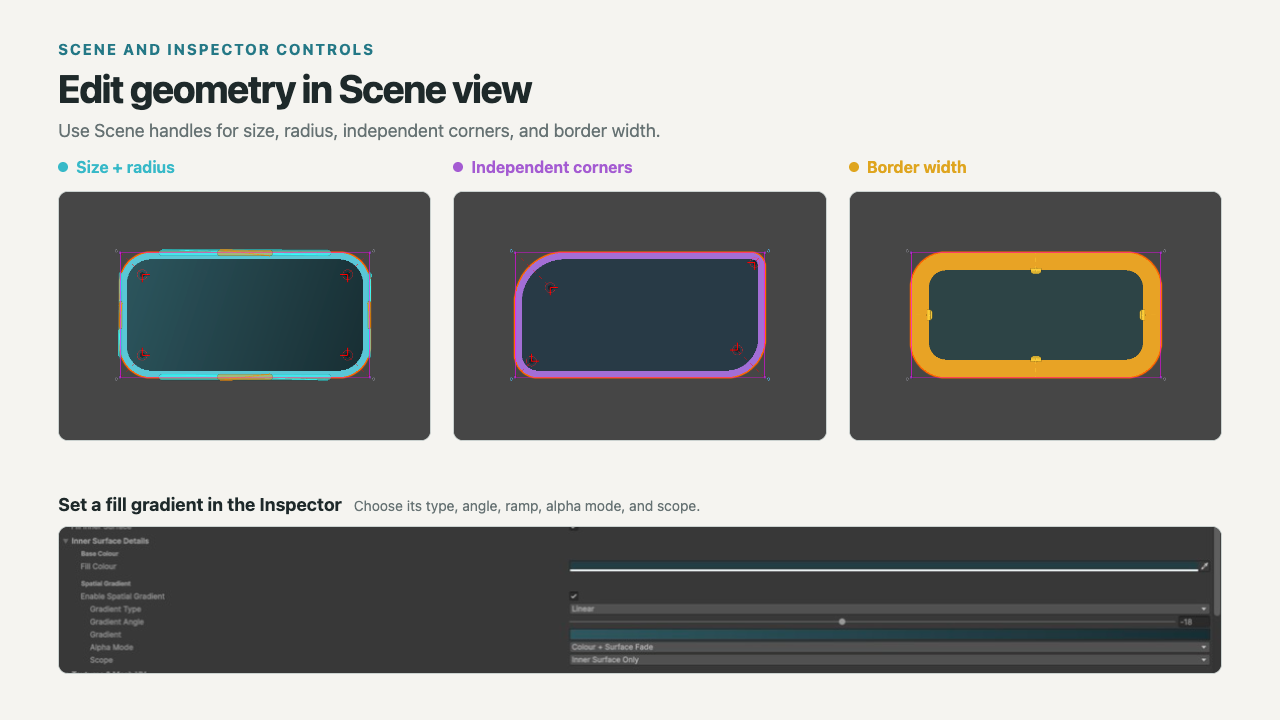
Use Scene handles for direct size, radius, independent-corner, and border-width edits. Use the Inspector for exact values, profiles, colours, gradients, textures, and effects.

Unity Scene view and Inspector showing the controls for size, corner radius, independent corners, border width, and gradients on one Rounded Rectangle.
Scene handles edit size, radius, independent corners, and border width; use the Inspector for exact values and gradients.

Three visible outputs

Choose Where The Shape Renders

OutputStart here whenVisible owner
World / 3D mesh The shape belongs in the Scene, world or AR/VR space, or needs a 3D collider. MeshRenderer
Canvas mesh UI Unity UI must draw the generated mesh and its topology. RoundedRectCanvasGraphic
Canvas SDF A 2D Canvas surface needs soft edges, glow, shadow, emboss, or mask-aware effects. RoundedRectSDFGraphic