FormWren
Pre-release docs

Before choosing a destination

How Rendering Paths Work

Rounded Rectangle uses one Generator for the shared shape and base appearance settings. The rendering path determines where the result is drawn, which component draws it, how it is sized, and which path-specific controls are available.

Keep the object as World Mesh when it belongs directly in the Scene. Move it to Canvas Mesh UI when a Canvas element needs generated topology, or to Canvas SDF when it needs soft edges and SDF effects. Cache, rounded masking, and export are optional workflows applied after choosing one of these three destinations.

Match the path to the result

Choose Between Three Rendering Destinations

Keep the shape in the Scene as generated geometry, or move the selected object into a Canvas. Choose the destination first; add cache, rounded masking, or export after the live result is working.

Base path
Choose it when
What happens next
Base pathWorld Mesh
Choose it whenThe shape belongs in the Scene, needs generated geometry, or may use the optional 3D MeshCollider.
What happens nextKeep the created object as-is. MeshRenderer draws the mesh generated by RoundedRectangleGenerator.
Base pathCanvas Mesh UI
Choose it whenThe shape belongs in a Canvas and its generated topology, border rings, or mesh UVs matter.
What happens nextMove the selected object to Canvas Mesh UI. RectTransform controls its Canvas size and RoundedRectCanvasGraphic draws it.
Base pathCanvas SDF
Choose it whenThe shape belongs in a Canvas and needs soft edges, shadow, glow, emboss, or SDF-based masking/export.
What happens nextMove the selected object to Canvas SDF. RectTransform controls its Canvas size and RoundedRectSDFGraphic adds the soft effects.

Choose Canvas Mesh UI when the generated mesh is part of the requirement. Choose Canvas SDF when the soft-effect controls are part of the requirement.

Scene destination

World Mesh

Use World Mesh for a generated shape that belongs directly in the Scene.

  1. From Unity's main menu, choose Tools > Rounded Rectangle > Create > Rounded Rectangle.
  2. Edit the selected object with its Scene handles or enter exact values on RoundedRectangleGenerator.
  3. Confirm the shape is visible through its MeshRenderer. No Canvas conversion is required.

GameObject > 3D Object > Rounded Rectangle > Rounded Rectangle is the Unity-native creation alias. Layout and Grid are sibling commands in the same submenu.

Visible resultMeshRenderer + generated mesh
Edit shape and base styleRoundedRectangleGenerator
Choose another path whenthe shape must participate in Canvas layout or needs SDF-only effects.

The optional generated collider is a 3D MeshCollider, not a Unity Collider2D. Transparent sorting and material cost follow normal Unity renderer rules.

Canvas destination with generated topology

Canvas Mesh UI

Use Canvas Mesh UI when a Canvas element must retain the generated mesh topology, border rings, or mesh UV behavior.

  1. Select the object with RoundedRectangleGenerator.
  2. From Unity's main menu, choose Tools > Rounded Rectangle > Rendering Path > Move Selected to Canvas Mesh UI.
  3. Confirm the selected GameObject is under a Canvas and now has a RectTransform plus RoundedRectCanvasGraphic.
  4. Resize it with the RectTransform; edit radius, border, fill, gradients, and textures on RoundedRectangleGenerator.

The Generator Inspector's UI > Move to Canvas > Mesh UI command performs the same conversion.

Visible resultRoundedRectCanvasGraphic
Canvas sizeRectTransform
Choose Canvas SDF whensoft edge, glow, shadow, emboss, or SDF export is the main requirement.
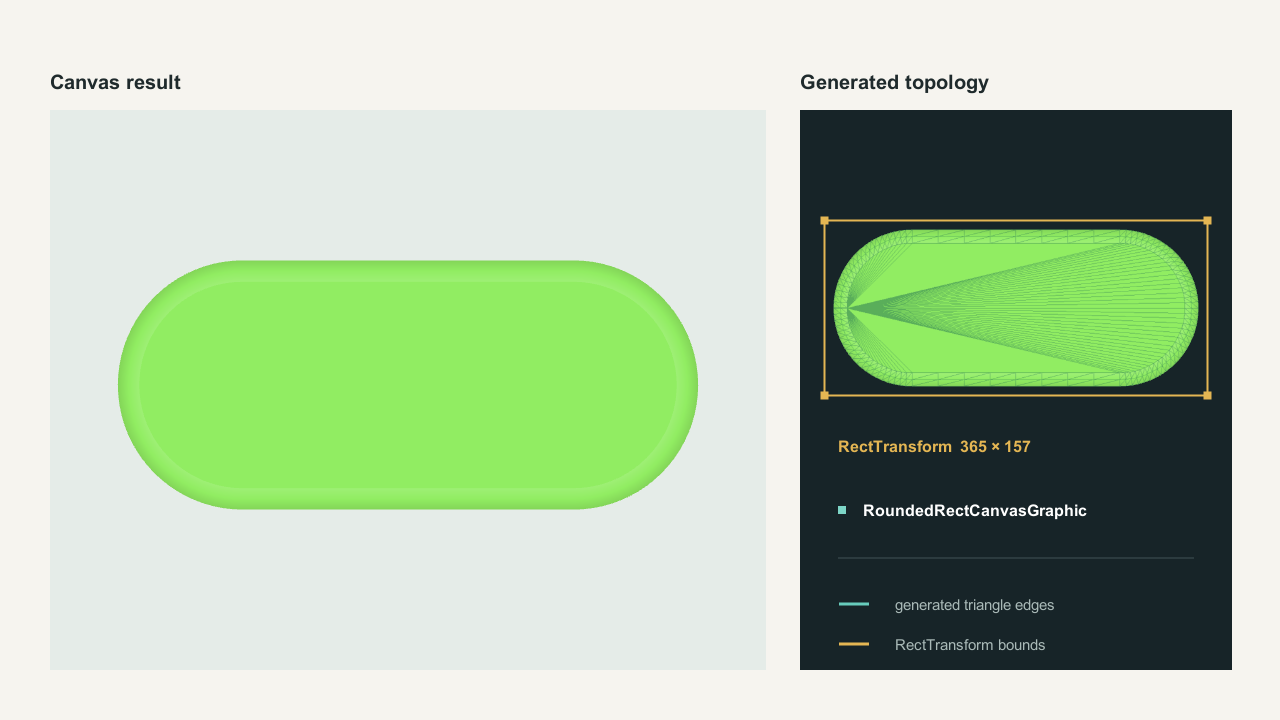
One finished Canvas Mesh UI specimen beside its actual generated triangle topology and RectTransform bounds.
Canvas Mesh UI draws the generated topology through Unity UI and uses its RectTransform for Canvas sizing.

Canvas destination for soft effects

Canvas SDF

Use Canvas SDF when a Canvas panel, button, badge, or HUD surface needs soft edges or SDF effects.

  1. Select the object with RoundedRectangleGenerator.
  2. From Unity's main menu, choose Tools > Rounded Rectangle > Rendering Path > Move Selected to Canvas SDF.
  3. Confirm the selected GameObject is under a Canvas and now has a RectTransform plus RoundedRectSDFGraphic.
  4. Resize it with the RectTransform. Edit radius, border, fill, gradients, and textures on RoundedRectangleGenerator; edit softness, shadow, glow, and emboss on RoundedRectSDFGraphic.

The Generator Inspector's UI > Move to Canvas > SDF command performs the same conversion.

Visible result and soft effectsRoundedRectSDFGraphic
Canvas sizeRectTransform
Choose Canvas Mesh UI whengenerated topology or mesh UV behavior is the main requirement.
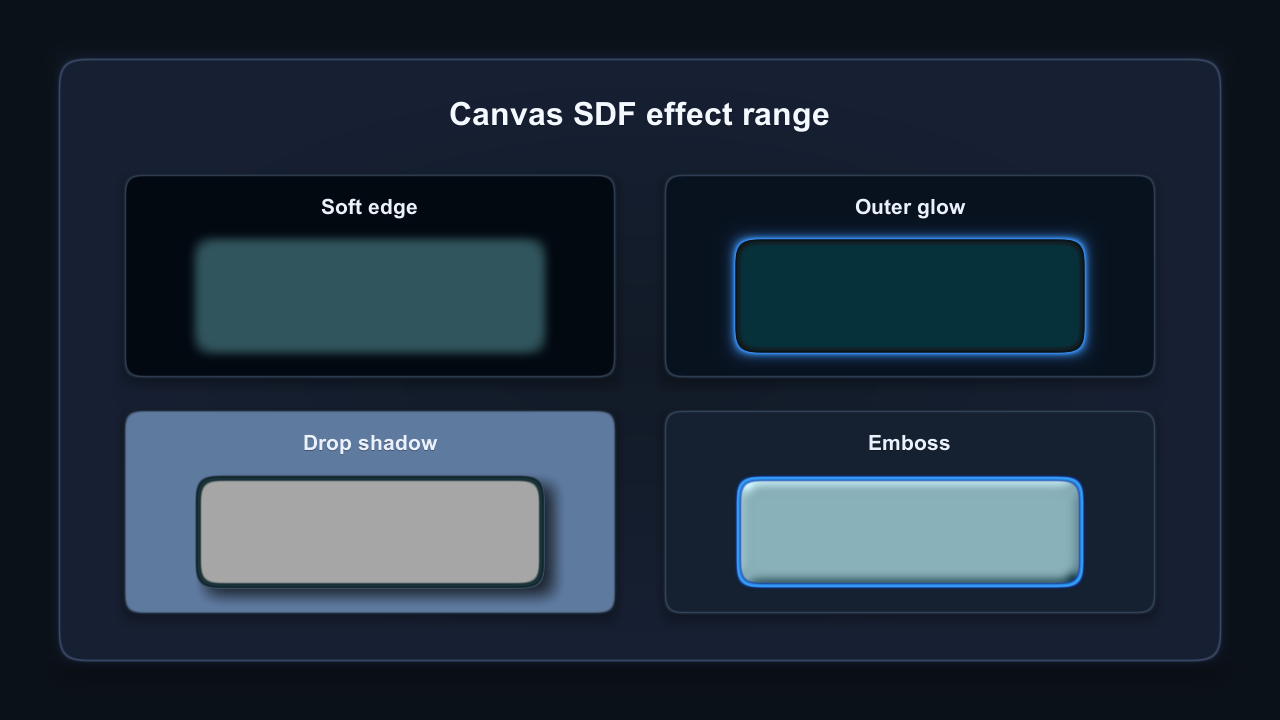
Four related Canvas SDF rounded rectangles demonstrating soft edge, outer glow, drop shadow, and emboss.
Canvas SDF provides soft edge, outer glow, drop shadow, and emboss controls for Canvas UI.

Optional workflows after the base path

Add Cache, Rounded Masking, Or Export Only When Needed

Render cache
Capture a stable SDF or World Mesh result only after the live appearance is correct. Measure the result on the target device.
Rounded masking with visible outer effects
Use the dedicated masking workflow when clipped content must stay inside the rounded shape while glow or shadow remains visible outside it.
Raster export
Export one live RoundedRectSDFGraphic as PNG/PSD, or flatten supported Rounded Rectangle SDF/Canvas Mesh visuals in a selected Canvas subtree to PNG. Text and icons remain separate.